How Often Should You Replace Your Wi-Fi Router? Signs It Is Time to Upgrade
There is no fixed replacement date for every Wi-Fi router. Use its software support, reliability, coverage and compatibility with your household’s devices to decide whether it is still doing its job.

You do not need to replace a Wi-Fi router simply because it has been in use for a certain number of years. A better approach is to review it periodically and replace it when it no longer receives security support, cannot provide reliable coverage, or has become a practical bottleneck for the way you use the internet. For many homes, a review at around the five-year mark is sensible, but the right time can be earlier or later depending on the router and your needs.
The short answer: replace it when it stops meeting your needs
A router that is stable, supported and provides adequate coverage does not need replacing just to keep up with a calendar. Conversely, a newer router may be worth considering if persistent problems remain after you have checked your broadband service, placement and settings.
The most important factors are security updates, connection reliability, wireless coverage, the number and type of devices in your home, and whether the router supports the features your broadband connection and devices can use.
- Review an older router at least once a year for available firmware updates and support status.
- Plan a replacement if the manufacturer has ended security updates or the router is no longer reliable.
- Consider an upgrade after a change in household needs, such as working from home, adding smart-home devices or moving to a larger property.
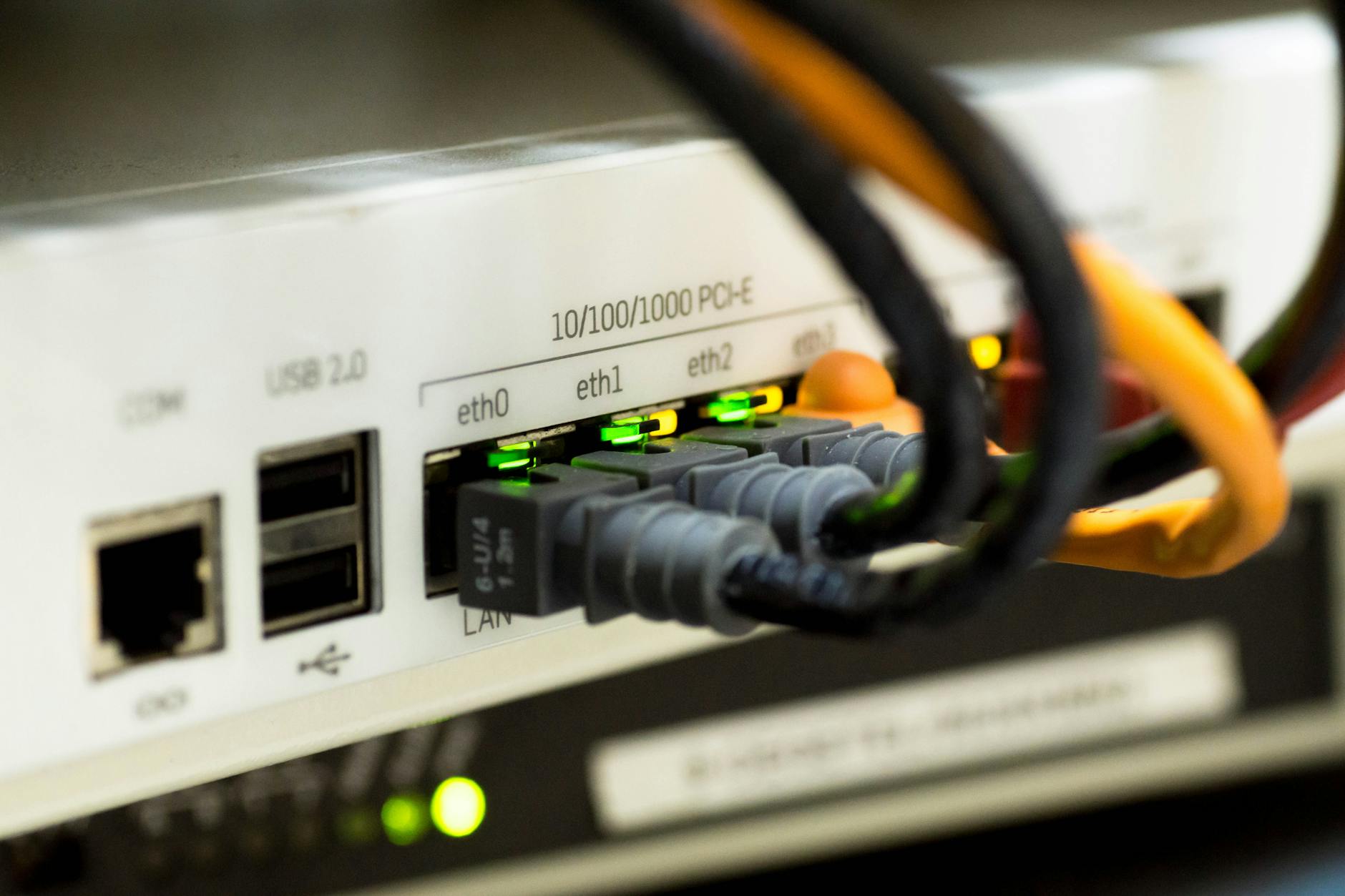
Signs that your router may be ready for replacement
One occasional dropout does not automatically mean the router has failed. Internet service outages, a loose cable, interference and an awkward router location can all cause similar symptoms. Repeated issues, especially after basic checks, are more meaningful.
Pay particular attention to whether a problem affects the whole home or just one room or device. That distinction helps you decide whether you need a new router, better placement, a mesh system, or simply troubleshooting on the affected device.
- The router no longer receives firmware or security updates.
- It needs frequent restarts to restore a connection.
- Devices regularly disconnect despite a stable broadband service.
- Coverage is consistently poor in parts of your home where you need a dependable connection.
- The router struggles when several people stream, make video calls, play online games or use smart devices at once.
- It lacks useful support for newer Wi-Fi generations or security settings used by your current devices.
- Its ports or configuration options no longer suit your setup, such as when you need wired connections in a home office.
For a deeper look, see Where Should You Place Your Wi-Fi Router for the Best Home Coverage?.
Security support matters more than age alone
A router sits between your home network and the internet, so firmware support is a key part of its useful life. Manufacturers may release updates to fix security vulnerabilities, improve stability or address compatibility problems. Once support ends, an otherwise functional router may become a less sensible choice for a network that handles personal accounts, work devices and smart-home equipment.
Check the router maker’s support page for your exact model, then look in the router’s administration interface for the installed firmware version. If automatic updates are available, enable them. If updates have ended, replacing the router is generally the safer long-term option.
- Use a unique, strong administrator password rather than the factory default.
- Use a modern Wi-Fi security setting where your devices support it.
- Remove old devices or guest access you no longer need.
- Do not expose the router’s administration page to the internet unless you fully understand why it is required.
When a newer Wi-Fi standard can help
Newer Wi-Fi standards can improve efficiency, capacity and compatibility, but an upgrade is not automatically worthwhile because a new standard exists. The benefit depends on your devices, your broadband connection and the conditions in your home.
For example, if your main devices use an older Wi-Fi generation and your current connection is dependable, a standards upgrade alone may make little day-to-day difference. It becomes more relevant when you have compatible newer phones, laptops or tablets, many active devices, or a demanding setup with heavy simultaneous use.
Wi-Fi 6, Wi-Fi 6E and Wi-Fi 7 are different generations with different capabilities. Before treating any of them as a solution, check which standards your important devices support and whether the advertised features are available in your country and home environment.
- Prioritise coverage and stability over a headline Wi-Fi generation.
- Do not assume a new router will increase the speed supplied by your broadband provider.
- Remember that walls, floors, nearby networks and router placement affect wireless performance.
Rule out simpler fixes first
Replacing hardware can be unnecessary if the real problem is placement or configuration. Put the router in a central, open location where practical, rather than inside a cupboard, behind a television or on the floor. Keep it away from large metal objects and other electronics that may create interference.
Restarting a router can resolve a temporary fault, but it should not become a routine workaround. Also check whether the issue occurs on a wired connection. If wired devices lose internet access too, the cause may be your broadband line, modem or provider rather than Wi-Fi.
If only distant rooms have weak signal, extending coverage may be more appropriate than replacing an otherwise capable router. In larger or unusually shaped homes, a mesh Wi-Fi system or carefully placed access point can address coverage more directly.
- Check your provider’s service status before changing equipment.
- Test close to the router and then in the problem area.
- Update the router firmware and the affected device’s software.
- Try a wired connection where possible to separate a Wi-Fi problem from an internet connection problem.
- Review the router’s placement before deciding it is underpowered.
Router, modem and provider hub: know what you are replacing
The terms are often used interchangeably, but they can describe different equipment. A router manages your local network and Wi-Fi. A modem connects certain types of broadband service to your home network. Many provider-supplied hubs combine both functions in one box.
If you use a combined provider hub, you may be able to switch off its Wi-Fi and connect a separate router or mesh system. In other setups, replacing the router without understanding the modem or provider requirements can leave you without a connection. Check your provider’s guidance and the equipment’s compatibility before making changes.
- Identify the model number and whether the device is a router, modem-router or provider hub.
- Keep any required login details or provider settings before changing equipment.
- Check whether your provider requires its own hub to remain connected.
A practical replacement decision checklist
A good replacement decision is based on a clear problem rather than a vague sense that the router is old. Write down what is not working, where it happens and which devices are affected. Then check support status, update the firmware and test placement. If the problem persists, you will have a much clearer idea of what the replacement needs to solve.
There is also no need to buy more capability than your home can use. A household with a modest broadband connection and a few devices has different needs from one with multiple remote workers, gamers, smart cameras and hard-to-reach rooms.
- Is the current router still receiving security updates?
- Is poor performance limited to Wi-Fi, or does it affect wired devices too?
- Do problems occur everywhere or only in certain rooms?
- Have your household’s device count or internet use changed?
- Do your key devices support the Wi-Fi features you are considering?
- Would improved placement or expanded coverage solve the issue more directly?

Replace with a reason, not just because of the date
The best answer to how often you should replace your Wi-Fi router is: when support, reliability or capability makes it necessary. Review the router regularly, keep its firmware current and investigate coverage or broadband issues before replacing it. When the device is unsupported, repeatedly unreliable or no longer suitable for your household, an upgrade is a sensible step.