Where Should You Place Your Wi-Fi Router for the Best Home Coverage?
A router’s location can have a major effect on Wi-Fi coverage. Use these practical placement principles to reduce weak spots, interference and unreliable connections around your home.
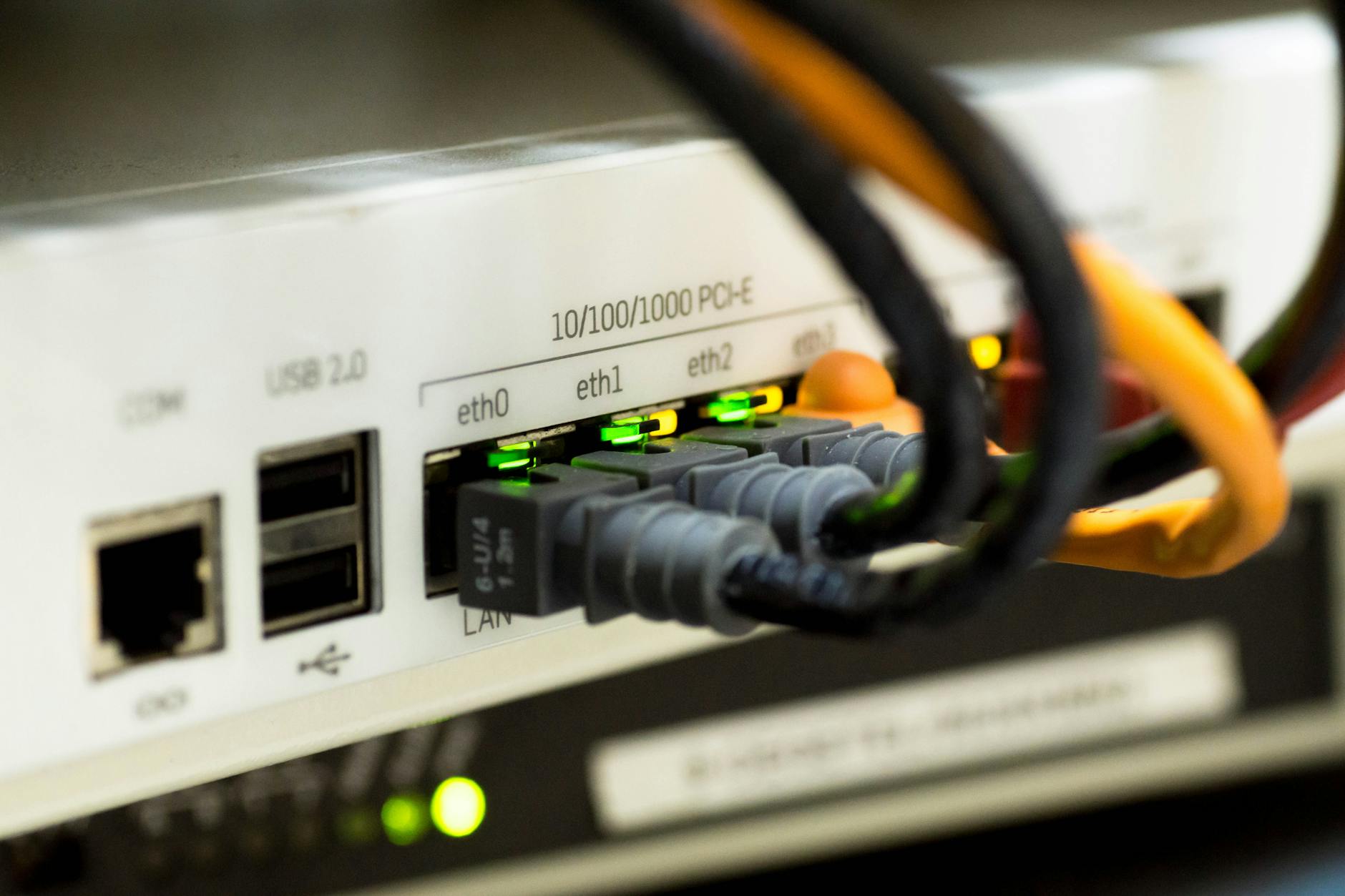
If your Wi-Fi is fast near the router but unreliable in other rooms, moving the router may help more than changing settings. The best location is usually a central, open and elevated position that puts the router as close as practical to the devices you use most. The exact answer depends on your home’s layout, building materials and where the broadband line enters the property.
Start with a central location
Wi-Fi signals spread outward from the router, so placing it near the centre of the area you want to cover usually gives the most balanced result. In a typical flat, this may be a living room or hallway rather than a far corner where the broadband cable happens to enter.
For a house, think in three dimensions as well as across the floor plan. A router on a middle floor can often serve upstairs and downstairs better than one placed at one end of the ground floor. It will not eliminate every weak spot, but it reduces the distance and number of walls between the router and many devices.
Central does not have to mean exactly in the physical middle of the building. Prioritise the rooms where you work, stream, make video calls or use smart-home devices. If one area matters much more than the others, it can make sense to position the router slightly closer to it.
- Aim to minimise the number of walls and floors between the router and regularly used devices.
- Avoid placing the router at the extreme edge of the home if you need coverage throughout the property.
- If broadband enters at an inconvenient point, check whether your provider or installation setup allows the router to be moved safely.

Keep the router out in the open and off the floor
A router works best when its signal is not immediately blocked by furniture or surrounding objects. Put it on a shelf, table or wall-mounted position where it has some clear space around it. Keeping it off the floor is especially useful because floors, low furniture and nearby clutter can obstruct part of the signal path.
Do not hide the router in a closed cupboard, TV cabinet, drawer or utility box simply to keep it out of sight. This can reduce coverage, particularly when the cabinet contains metal components, cables or other electronics. A more visible location is often a worthwhile trade-off for a stable connection.
- Choose a stable, ventilated surface rather than a crowded media unit.
- Keep the router away from large metal objects and reflective surfaces where possible.
- Leave room around the router so air can circulate and cables are not sharply bent or strained.
Avoid common sources of interference
Many household devices use radio frequencies or produce electrical interference that can affect Wi-Fi. You do not need to remove these devices from your home, but it is sensible not to place the router immediately beside them. Microwaves, cordless phone bases, baby monitors and some wireless security equipment can be problematic in certain setups.
Large appliances can also block or weaken signals. Kitchens are a frequent source of coverage issues because fridges, ovens, metal splashbacks and plumbing can sit between the router and connected devices. Aquariums are another overlooked obstacle, as water can absorb wireless signal.
Bluetooth devices do not automatically cause a noticeable problem, but a router surrounded by hubs, speakers, consoles and other wireless electronics has more potential for congestion than one placed in a clearer area.
- Keep the router away from the kitchen where possible.
- Do not place it directly beside a microwave, cordless phone base or large television.
- Avoid positioning it behind an aquarium, radiator, metal filing cabinet or dense cluster of electronic equipment.
Think carefully about walls and building materials
Distance is only one part of Wi-Fi coverage. A signal travelling through several light plasterboard walls may remain usable, while a shorter route through thick brick, stone, concrete or metal can be much more difficult. Older properties, extensions and converted rooms can have very different materials from the rest of the home.
If a particular room always has poor coverage, map the path from the router to that room. Look for structural walls, chimney breasts, bathrooms, kitchen units and floors that may be in the way. Moving the router even a short distance to create a clearer path can make a meaningful difference.
This is also why a single router is not always enough for a large or unusually shaped home. Long, narrow layouts, multiple storeys and solid internal walls can create areas that are hard to reach from one central point.
- Brick, stone, concrete, metal and water tend to be more challenging obstacles than open doorways or lightweight internal partitions.
- Bathrooms and kitchens can create difficult signal paths because of pipes, tiles, appliances and water.
- Test coverage with doors in their usual positions, since closed doors can affect the result.

Position the antennas sensibly, if your router has them
Some routers have external adjustable antennas, while others have antennas built into the casing. If yours has external antennas, use the manufacturer’s guidance first. In general, changing antenna orientation can affect how the signal is distributed around the home.
For a home spread mainly across one floor, a vertical antenna position is commonly a sensible starting point. In a multi-storey home, varying the orientation of separate antennas may help provide coverage in different directions. Make one change at a time and assess whether it improves the rooms that matter.
Do not assume more dramatic antenna angles will always produce a better result. Router placement and obstacles usually have a larger effect than small antenna adjustments.
- Follow the router maker’s instructions where available.
- Make small adjustments and test in the same locations each time.
- Do not obstruct or force antennas against a wall, shelf or cabinet.
Test the location before making bigger changes
Wi-Fi performance can vary by room and device, so it is worth testing rather than judging the connection from one spot. After moving the router, use the devices you normally rely on in several rooms. Check everyday tasks such as loading web pages, making video calls and streaming content, not only a single speed test.
Give the router time to restart and for devices to reconnect after moving it. Then compare the results with the previous location. A route that looks more central on a floor plan may still perform poorly if it sits behind a structural wall or close to interference.
If you can, test at the times you normally use your connection. A setup that seems fine in a quiet morning may reveal problems in the evening when more household devices are connected.
- Test the furthest rooms as well as the rooms nearest to the router.
- Check both reliability and responsiveness, not just download speed.
- Move the router in stages so you can identify which change helped or made things worse.
When moving the router is not enough
A better location can improve many home Wi-Fi problems, but it cannot overcome every limitation. If the router must remain beside the incoming broadband socket, or if parts of the property are separated by thick walls or several floors, you may need to extend the network rather than keep repositioning the same device.
A mesh Wi-Fi system, additional wired access point or other network extension approach can help distribute coverage more effectively. The right option depends on whether you can run an Ethernet cable, the size and construction of the home, and whether the issue is weak Wi-Fi coverage or the broadband connection itself.
Before adding equipment, confirm the problem is actually wireless. If devices connected close to the router are also slow or dropping out, the issue may lie with the broadband service, router configuration or the router itself rather than its position.
- Improve placement first, since it costs nothing and may solve the problem.
- Consider extra access points or mesh networking for large, multi-storey or heavily built properties.
- Contact your broadband provider if connection problems occur even next to the router.
For a deeper look, see How to Choose the Best Wi-Fi Router for Your Home.

The practical rule for router placement
Place your Wi-Fi router as centrally, openly and high up as your home allows, while keeping it away from thick barriers, large appliances and wireless interference. Then test the places where you actually use Wi-Fi. If a sensible location still leaves important rooms with poor coverage, the home may need more than one wireless access point rather than another small router move.