
What Router Features Actually Matter for a Reliable Home Network
Router spec sheets can be crowded with terms that do not always translate into better Wi-Fi. This guide explains the features that affect coverage, reliability, security, and everyday use.
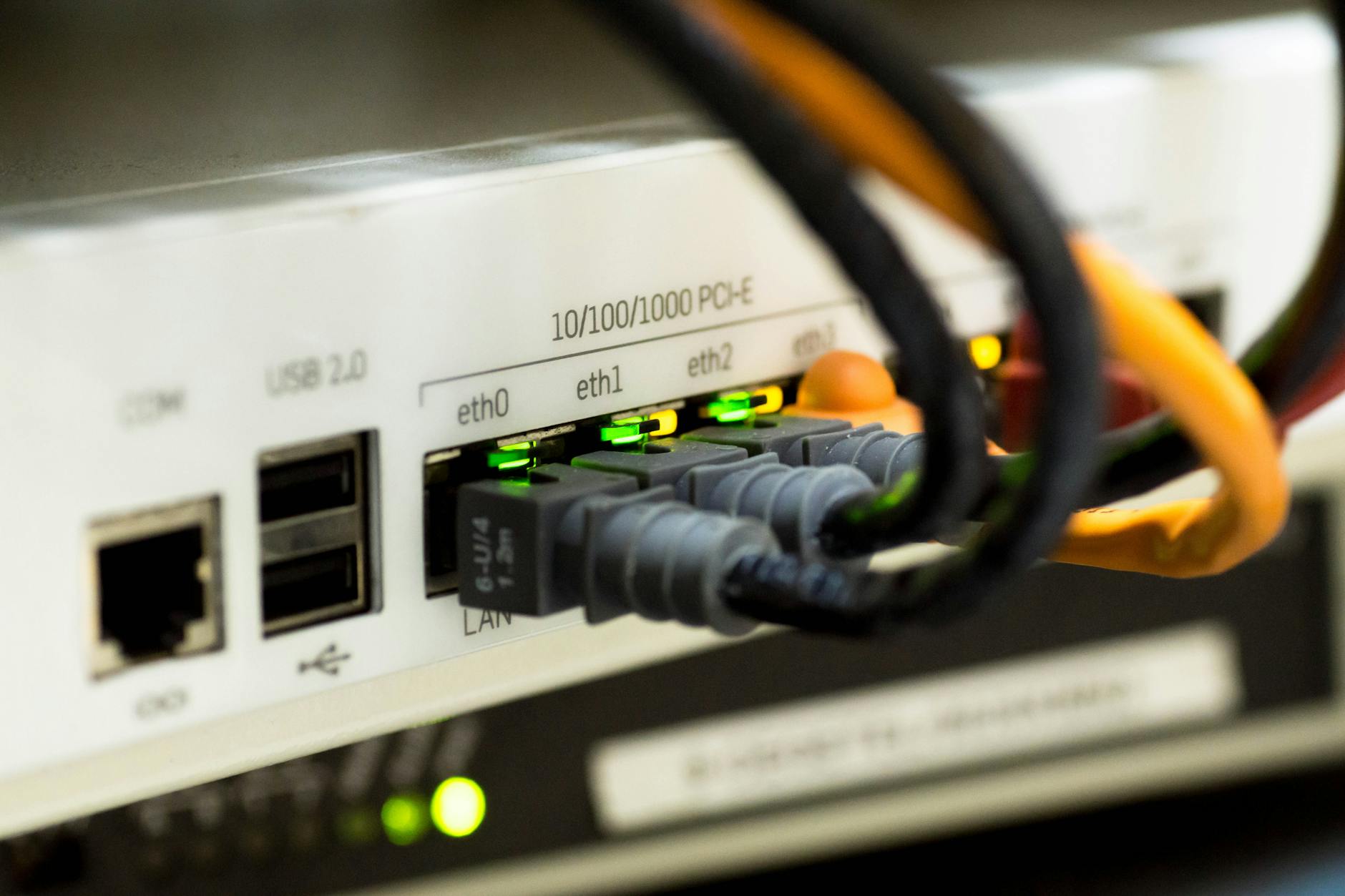
A router has an outsized effect on how a home internet connection feels. It determines how well devices stay connected, whether video calls remain stable, how far Wi-Fi reaches, and how easily a busy household can use the network at once. Yet router listings often emphasize labels and peak wireless speeds that are difficult to compare meaningfully. The features that actually matter are the ones that fit your internet plan, home layout, device count, and need for control and security.
Start with your home, not the largest speed number
Before looking at router specifications, consider where the router will sit, how large the home is, what materials separate rooms, and which activities happen at the same time. A compact apartment with a few phones and a streaming television has very different needs from a multi-level home with remote workers, game consoles, smart-home devices, and outdoor cameras.
Advertised Wi-Fi speed is a theoretical maximum shared across conditions that rarely match a real home. Your device's own wireless capabilities, distance from the router, interference from nearby networks, and the internet plan itself all affect actual performance. A router with an enormous aggregate speed rating is not automatically the better choice if it does not improve coverage, wired connectivity, or handling of your particular devices.
- Map the rooms where you need dependable service, especially workspaces and media areas.
- Count regularly connected devices, including speakers, cameras, thermostats, and appliances.
- Check the speed of your internet service so the router's internet port is not a bottleneck.
- Identify whether the router can be placed in a central, open location rather than a cabinet or basement corner.

Wi-Fi generation matters, but compatibility matters too
The Wi-Fi generation indicates the wireless technologies a router supports. Wi-Fi 6 and Wi-Fi 6E are common choices for modern households, while Wi-Fi 7 is a newer generation. Newer standards can improve efficiency, capacity, and support for newer devices, but they do not make older phones, laptops, and smart-home products use features they do not support.
A useful rule is to avoid paying solely for a capability that none of your current or near-future devices can use. At the same time, a newer standard can be sensible when replacing a router expected to remain in service for years. Look at the devices that need the best connection, such as newer laptops, phones, or gaming systems, rather than assuming every connected device will benefit equally.
- Wi-Fi 6 is often a practical baseline for homes with many connected devices.
- Wi-Fi 6E adds access to the 6 GHz band for compatible devices, which can help in areas with crowded older Wi-Fi bands.
- Wi-Fi 7 adds newer capabilities, but its value depends heavily on having compatible client devices and suitable internet or local-network needs.
- Older Wi-Fi devices should still connect when the router supports their generation, though they will operate using their own capabilities.
If you're comparing options, see Best Tri-Band Wi-Fi 7 Router: How to Choose the Right 6 GHz Router for Your Home.
Coverage is about placement, radios, and expansion options
Coverage claims should be treated as estimates, not guarantees. Walls, floors, brick, concrete, metal, plumbing, mirrors, and even furniture can weaken a signal. The same router can perform very differently in two homes of similar size because their layouts and building materials differ.
For a smaller or open-plan space, one well-positioned router may be enough. In larger, long, multi-story, or heavily built homes, the ability to add mesh nodes or wired access points is more important than a broad coverage claim on a box. Mesh systems use multiple units to extend service, while wired access points connect back to the network by Ethernet and can be especially dependable where cable runs are possible.
Look for a router that supports an expansion path appropriate for your home. If you expect to add coverage later, confirm whether compatible mesh units are available and whether the system supports Ethernet backhaul. Ethernet backhaul means the mesh units can communicate through network cables rather than relying only on a wireless link.
- Place the main router as centrally and as high as practical, away from dense obstructions.
- Avoid enclosing a router in a metal cabinet, media console, or utility closet when possible.
- Use a mesh system when coverage needs to extend across difficult areas.
- Prefer wired backhaul for mesh nodes when your home already has Ethernet runs or can accommodate them.
Pay attention to bands and how the router manages them
Most current routers use 2.4 GHz and 5 GHz Wi-Fi bands, and some also support 6 GHz. The 2.4 GHz band generally reaches farther and works with many older smart-home devices, but it is often more crowded. The 5 GHz band usually offers more capacity at shorter range. The 6 GHz band is available only to compatible devices and can provide additional room for modern wireless traffic.
Many routers automatically steer devices between bands under one network name. This can simplify setup and is convenient for most homes. However, the option to separate bands can be useful when troubleshooting, connecting a device that only supports 2.4 GHz, or managing smart-home setup. A router should make these controls accessible without requiring an advanced networking background.
- Keep 2.4 GHz available if you use older smart-home equipment.
- Use 5 GHz or 6 GHz for compatible laptops, phones, and streaming devices near the router or mesh node.
- Check whether guest networks can be configured separately from the main household network.
- Consider whether the router app allows band and device settings to be adjusted clearly.
For a deeper look, see How Often Should You Replace Your Wi-Fi Router? Signs It Is Time to Upgrade.
Wired ports are easy to overlook and hard to add later
Ethernet remains valuable for devices that need the most stable connection, including desktop computers, game consoles, streaming boxes, network-attached storage, and some smart-home hubs. A router's LAN ports are the ports used for devices inside the home, while the WAN or internet port connects to the modem or fiber gateway.
Check both the number and type of ports. A household that intends to wire several stationary devices may quickly run out of LAN ports. An Ethernet switch can add ports, but choosing a router with adequate connectivity from the start keeps the setup simpler. Also check whether the internet port supports the speed delivered by your service. This is particularly relevant for internet plans faster than traditional gigabit service.
USB ports can be useful for limited file sharing or printer connections, but they should not be the main reason to choose a router. Their usefulness depends on the router's software support and how reliably the feature is maintained.
- Count the devices you want to connect by Ethernet today and leave room for future additions.
- Verify the internet port and LAN port capabilities match your service and local networking plans.
- Look for link aggregation or multi-gigabit ports only if you have a clear use for them, such as faster-than-gigabit internet or local file transfers.
- Do not assume every physical port has the same speed capability.
Device capacity and traffic management affect busy households
A strong router does more than deliver a fast connection to one device. It needs to manage many simultaneous connections without making the network feel sluggish. This becomes important when video meetings, game downloads, streaming, cloud backups, and smart-home activity occur at the same time.
Features often described as quality of service, device prioritization, or traffic management can help organize network traffic. The most useful implementations are simple: they let you prioritize a work computer, game console, or video-call device when needed and show which devices are using the network. Sophisticated settings are not necessarily better if the controls are confusing or require constant adjustment.
Processor and memory details are sometimes listed, but they are rarely the most useful comparison point for a typical home. Support for current Wi-Fi standards, sufficient coverage, reliable software, and useful management tools usually tell you more about the day-to-day experience.
- Choose device prioritization if your household frequently competes for bandwidth.
- Look for per-device usage visibility if you need to identify an unfamiliar or bandwidth-heavy device.
- Remember that traffic management cannot overcome an internet plan that lacks enough capacity for simultaneous heavy use.
- Use Ethernet for latency-sensitive stationary devices when practical rather than relying only on prioritization settings.
Security updates and administration are essential features
A router is the gateway between your home devices and the internet, so ongoing software support matters. Security updates can address newly discovered vulnerabilities, improve compatibility, and fix stability problems. Before choosing a router, check the manufacturer's update policy, whether updates can be installed automatically, and whether the product still receives active support.
The available security settings also matter. WPA3 support is beneficial for compatible devices, while WPA2 compatibility remains necessary for many older products. A separate guest network helps keep visitors' devices apart from your main devices. Network segmentation, sometimes presented as an IoT network, can provide additional separation for smart-home devices when implemented clearly.
Avoid treating a router's security features as a substitute for good account and device hygiene. Use a unique administrator password, change the default Wi-Fi password, disable remote administration unless you need it, and review the connected-device list occasionally.
- Choose a router from a manufacturer with a clear history of software support.
- Enable automatic firmware updates when you are comfortable doing so.
- Use WPA3 where supported, with compatibility settings for older devices if required.
- Create a guest network for visitors rather than sharing the primary network password.
- Remove or investigate devices you do not recognize in the router's device list.
Useful controls should make the network easier to live with
The router's app or web interface becomes important whenever something goes wrong. Good administration tools make it easy to see connected devices, pause a device, create a guest network, update firmware, check signal status, and restart the network. These ordinary tasks matter more to most households than a long list of obscure advanced settings.
Parental controls can be useful, but read carefully about what they actually do. Some merely pause internet access on a schedule, while others categorize websites or create profiles. Features may also depend on a vendor account or an optional service. Choose controls based on whether your household will use them, not because they appear as a headline feature.
- Make sure the management interface works through both a mobile app and, if you prefer, a browser-based dashboard.
- Check whether basic network controls remain available without an ongoing paid service.
- Use separate profiles or schedules only when they fit real household routines.
- Keep recovery information and administrator credentials stored securely.
Features that deserve less weight
Several common marketing points are not meaningless, but they are often given too much importance. The number of external antennas does not by itself predict better coverage. A high aggregate speed label does not tell you how well a router will serve a distant room. Gaming branding does not guarantee lower latency, particularly if the limiting factor is the internet connection or the game server.
Likewise, an extremely broad feature list can create more complexity than value. Advanced VPN, custom firmware, deep traffic inspection, and extensive automation may be worthwhile for enthusiasts or specific work requirements. For most homes, they should come after coverage, reliable updates, appropriate ports, and straightforward management.
- Do not select a router solely because of its aggregate Wi-Fi speed rating.
- Do not assume more antennas automatically solve a coverage problem.
- Do not pay for advanced features you will not configure or maintain.
- Prioritize support and placement over decorative design or branding.

A practical way to prioritize router features
Start with reliable coverage in the rooms that matter, then confirm support for an appropriate Wi-Fi generation, enough wired ports, and an internet port that matches your service. Next, look for a realistic expansion option, useful device controls, guest networking, and a credible security-update policy. Those choices will usually have a greater effect on everyday Wi-Fi than the biggest number on a spec sheet. A router that fits your home and remains well supported is more useful than one packed with capabilities you will never use.

Robson Calefi Caitano
Robson Calefi Caitano is a technology professional with decades of experience in web development, internet infrastructure, and digital products. He holds a degree in Data Processing and has been a co-founder of an Internet Service Provider since 2000.
View author profile