
How to Improve Wi-Fi Signal at Home: A Practical Troubleshooting Guide
Weak home Wi-Fi is often a placement, interference or coverage problem. Use this step-by-step guide to identify the cause and improve your connection where it matters.

A weak Wi-Fi signal can look like slow streaming, video calls that freeze, web pages that take too long to load, or devices that disconnect in certain rooms. The cause is not always your internet plan. In many homes, the problem is where the router sits, what blocks the signal, wireless interference, or a coverage gap that a single router cannot reasonably reach.
Start by separating an internet problem from a Wi-Fi problem
Before changing settings or buying equipment, work out whether the issue is with your internet service or the wireless connection inside your home. This saves time and helps you choose the right fix.
Test a device close to the router, then repeat the same task in the room where Wi-Fi is unreliable. If the connection is consistently better near the router, the internet service may be fine and local Wi-Fi coverage is the likely issue. If it is poor everywhere, including beside the router, restart the modem and router, check for an outage with your provider, and consider whether the issue affects every device.
A wired Ethernet connection is another useful diagnostic tool when one is available. If a computer works normally over Ethernet but struggles on Wi-Fi, focus on the wireless network rather than the incoming internet connection.
- Check whether the problem affects one device or all devices.
- Compare performance near the router with performance in problem areas.
- Notice whether trouble happens at particular times of day.
- Restart networking equipment before making more involved changes.

Put the router in a better location
Router placement has an outsized effect on coverage. Wi-Fi is radio communication, so distance and physical obstacles matter. A router hidden in a cabinet, placed on the floor, or installed in a far corner has to push its signal through more barriers to reach the rest of the home.
Place the router in an open, elevated spot that is as central as practical. For a multi-level home, a location near the middle level can help distribute coverage more evenly. Keep antennas, if your router has adjustable external antennas, unobstructed and follow the manufacturer’s guidance for their orientation.
Avoid placing the router beside large metal objects, dense masonry, aquariums, mirrors, or major appliances. These can weaken or disrupt wireless signals. A utility closet may be convenient for cables, but it is rarely ideal for wireless coverage.
- Use an open shelf or tabletop rather than a closed cabinet.
- Keep the router away from the floor and away from thick walls when possible.
- Do not place it directly next to a television, speaker system, microwave, or cordless-phone base.
- Aim for a central location relative to the rooms where you use Wi-Fi most.
Reduce wireless interference
Wi-Fi shares radio spectrum with other nearby networks and, depending on the band, household electronics. In apartments, townhomes, and dense neighborhoods, competing networks can be especially noticeable. Interference does not always make Wi-Fi disappear, but it can make a connection inconsistent.
Most current routers offer 2.4 GHz and 5 GHz Wi-Fi bands, while some also support 6 GHz. The 2.4 GHz band generally reaches farther and handles obstacles better, but it is often more crowded. The 5 GHz band usually offers more capacity over shorter distances. The 6 GHz band can provide additional uncongested spectrum for compatible devices, but its range through walls is more limited.
If your router lets you use separate network names for each band, this can help with troubleshooting. Connect a nearby laptop, streaming device, or phone to 5 GHz or 6 GHz when supported. Reserve 2.4 GHz for distant devices or smart-home gear that does not need much bandwidth. Automatic band steering can also work well, but it is worth checking whether a device is repeatedly choosing a less suitable band.
- Move Bluetooth hubs and other wireless electronics away from the router when possible.
- Use the router’s automatic channel selection first, then try a less congested channel if connection problems continue.
- Keep smart-home devices on an appropriate band without forcing nearby high-demand devices onto 2.4 GHz.
- Remember that a microwave can temporarily affect nearby 2.4 GHz Wi-Fi.
Check router settings and software
A router’s settings do not need constant adjustment, but a few checks can improve reliability and security. Begin with a router restart, especially if performance has gradually worsened. Restarting clears temporary issues and allows the router to reconnect cleanly to the modem.
Next, check for firmware updates through the router manufacturer’s app or administration page. Firmware updates can address stability, compatibility, and security issues. Use updates provided through the official manufacturer interface, and avoid interrupting the router while an update is in progress.
Make sure the network uses a strong, unique Wi-Fi password and modern security settings supported by your equipment. An unsecured or weakly protected network can allow unknown devices to consume bandwidth. If the router provides a connected-device list, review it periodically and remove devices you no longer recognize or use.
- Restart the modem and router in the order recommended by your internet provider.
- Install official router firmware updates when available.
- Use a unique network name and a strong password.
- Review connected devices and disconnect old or unknown entries.
- Create a guest network for visitors and, where appropriate, for less trusted smart devices.
Manage the devices and activities using your network
A strong signal does not guarantee a responsive connection when many devices are active at once. Video calls, cloud backups, online gaming, large downloads, security cameras, and high-resolution streaming can all compete for available capacity. The issue may be most visible on devices that need consistent, low-delay connections.
Look for background activity before assuming the router is failing. A computer may be syncing files, a game console may be downloading an update, or a phone may be backing up photos. Scheduling large downloads or backups for off-hours can make the network feel more responsive during the day.
If your router includes quality of service or device prioritization controls, use them carefully. Prioritizing a work computer or video-conferencing device can help during important calls, but overly complex rules can create new problems. Start simple and reassess after a few days.
- Pause large downloads during calls, gaming sessions, or live streaming.
- Schedule cloud backups and software updates outside busy periods.
- Use Ethernet for stationary, high-demand devices when cabling is practical.
- Prioritize critical devices only if your router offers a clear, manageable option.
Use Ethernet where Wi-Fi is not the best tool
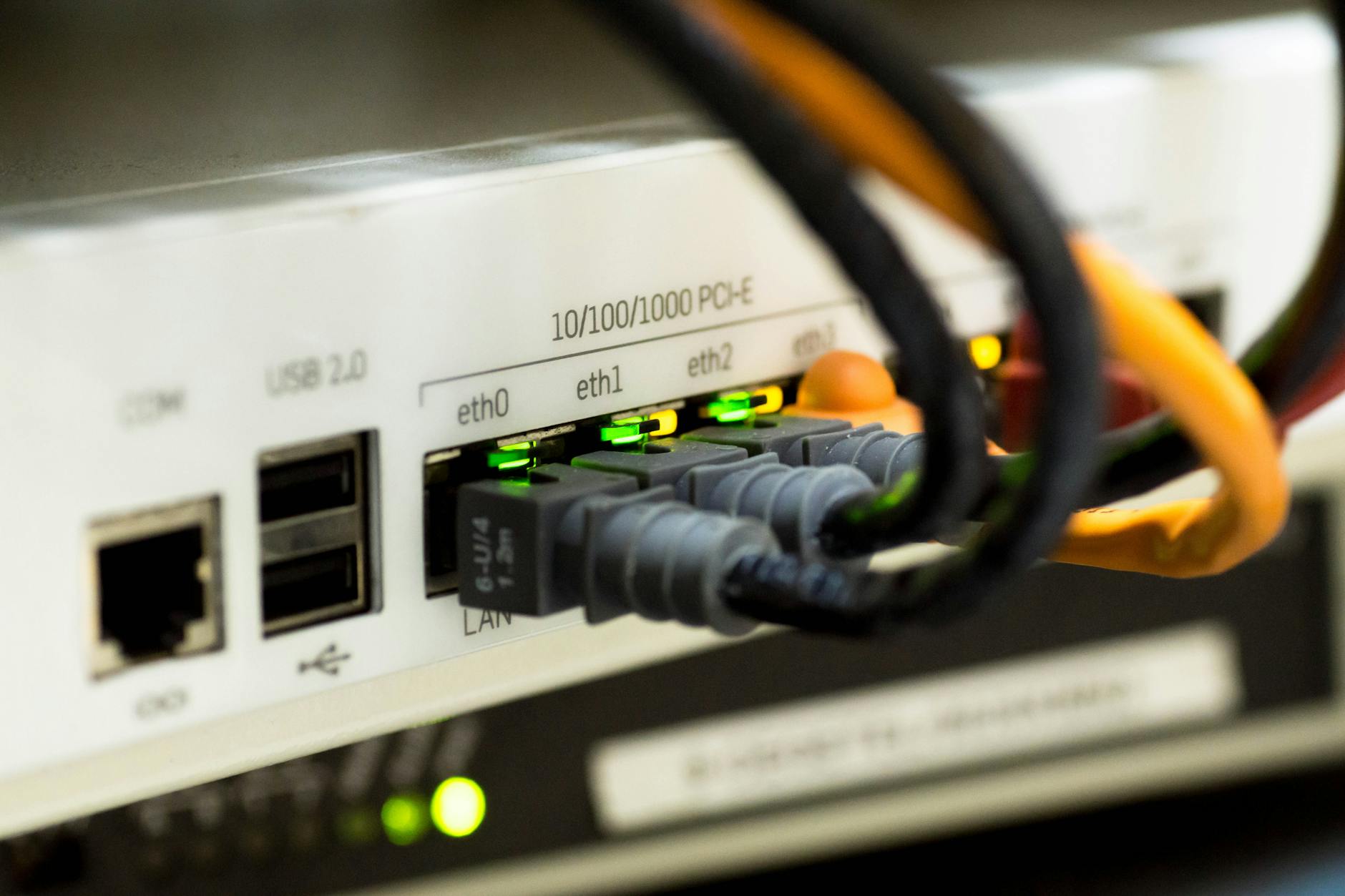
Wi-Fi is convenient, but a wired connection is often the most dependable choice for devices that stay in one place. Ethernet can be useful for desktop computers, game consoles, televisions, streaming boxes, and workstations, particularly when they are close enough to the router or a wired network connection.
Using Ethernet for one or two high-demand devices can also free wireless capacity for phones, tablets, and smart-home equipment. This is not a requirement for a functional home network, but it is a practical option when a device needs stable performance and a cable route is realistic.
- Consider Ethernet for a home office desktop or frequently used game console.
- Use a wired connection to diagnose whether a problem is specifically Wi-Fi related.
- Avoid running cables through doorways or across walkways where they may be damaged or create a trip hazard.
If you're comparing options, see GL.iNet Flint 3 wi-fi 7 gaming router review: Is It Right for Multi-Gig Gaming?.
Address dead zones with the right coverage approach
If Wi-Fi is consistently weak in a distant bedroom, basement, garage, or outdoor work area, changing the router’s location may not be enough. The right solution depends on the home’s layout, construction, and whether wired connections are possible.
A mesh Wi-Fi system uses multiple coordinated access points to extend coverage across a larger area. It is often a good fit for larger homes or layouts with several hard-to-reach rooms. Placement matters: an additional mesh point needs a strong enough connection to the rest of the system, so placing it deep inside a dead zone may not solve the problem.
A Wi-Fi extender can be useful for a smaller coverage gap, but it should be installed where it still receives a reliable signal from the main router. An access point connected by Ethernet is often a stronger option when you can run a cable, because it creates Wi-Fi coverage without relying on a wireless relay. Powerline networking may help in some homes, but results can vary with the electrical wiring, so it should be treated as a situation-dependent option rather than a guaranteed fix.
- Choose mesh Wi-Fi for broad, whole-home coverage needs.
- Place extenders between the router and the dead zone, not at the edge of no coverage.
- Consider a wired access point for the most dependable expansion.
- Test coverage after adding equipment before assuming the problem is solved.
Know when the router or internet plan is the limiting factor
Older routers can struggle with a modern household full of phones, laptops, televisions, consoles, cameras, and smart devices. Compatibility with newer Wi-Fi generations, available bands, security support, and the number of connected devices can all affect the experience. If the router no longer receives updates, drops connections often, or cannot adequately cover your space after sensible placement changes, replacement may be warranted.
It is also possible that the internet plan, modem, or provider connection is the bottleneck. If a wired device near the modem is slow at all times, or if service drops repeatedly across every device, contact your provider. Describe what you tested, including whether the issue occurs over Ethernet and whether it happens at specific times. That information can help them identify a line, modem, or service issue more quickly.
- Replace equipment that is no longer supported or cannot meet your household’s connectivity needs.
- Check modem compatibility if you have changed internet service tiers or providers.
- Contact the internet provider when wired performance is also poor or service outages are frequent.
- Do not expect a new router to fix a problem originating outside your home network.
For a deeper look, see How Often Should You Replace Your Wi-Fi Router? Signs It Is Time to Upgrade.
Improve Wi-Fi by fixing the actual weak point
The most effective way to improve Wi-Fi signal at home is to diagnose the problem before changing equipment. Start with router placement, eliminate obvious interference, keep software current, and identify devices or activities competing for the connection. If weak coverage remains limited to certain areas, expand the network with equipment suited to the layout. When the issue is poor even beside the router or over Ethernet, shift attention to the modem, internet plan, or provider connection.

Robson Calefi Caitano
Robson Calefi Caitano is a technology professional with decades of experience in web development, internet infrastructure, and digital products. He holds a degree in Data Processing and has been a co-founder of an Internet Service Provider since 2000.
View author profile